
What You Need Before You Start
The WhatsApp Business API is accessed through Meta's Business Platform. Before your first message goes out, you need three things in place: a verified Meta Business Account, a phone number that has never been used on WhatsApp, and a platform (like Tenreply) to connect through. That is it.
You do not need a developer, a server, or any technical background. Tenreply handles the API layer entirely — your job is just to follow the steps below.
Step 1 — Create Your Tenreply Account
Go to app.tenreply.com and sign up. You will be asked for your business name and a few basic details. This takes about two minutes. Your Tenreply workspace is where all your conversations, contacts, and settings will live — think of it as your WhatsApp command centre.
Step 2 — Connect to Meta Business Manager
Inside the Tenreply onboarding flow, click Connect WhatsApp. This launches Meta's embedded signup — a guided flow that runs directly inside Tenreply without redirecting you away. You will:
- Log in to (or create) your Facebook / Meta account
- Create a Meta Business Account if you do not already have one — enter your legal business name and website
- Create a WhatsApp Business Account (WABA) linked to that business
- Register the phone number you want to use for WhatsApp
The phone number registration includes a one-time PIN verification — Meta will call or text the number to confirm you own it. This is a clean number that has never had WhatsApp installed. If you need a new number, a SIM-only plan or a VoIP number works fine.
Step 3 — Complete Business Verification (If Required)
Meta may ask you to verify your business before you can send high volumes of messages. This typically requires uploading one document: a business registration certificate, utility bill in the business name, or a bank statement. Verification usually completes within 24–48 hours. You can send low-volume messages while you wait.
Many businesses in early-growth stages are approved without full verification — Meta determines the requirement based on the account details you provide. Tenreply notifies you of your verification status as soon as Meta updates it.
Step 4 — Create Your First Message Template
Before you can message a customer first (outside of a conversation they started), you need at least one approved template. Inside Tenreply, go to Templates → New Template. Choose a category — Utility, Marketing, or Authentication — write your message, add any variables (like {"{{"}name{"}}"} or {"{{"}order_number{"}}"}), and submit for Meta review.
Template approval typically takes a few minutes to a few hours. Utility templates (transactional, service-related) are almost always approved. Marketing templates are reviewed for policy compliance.
Step 5 — Invite Your Team and Go Live
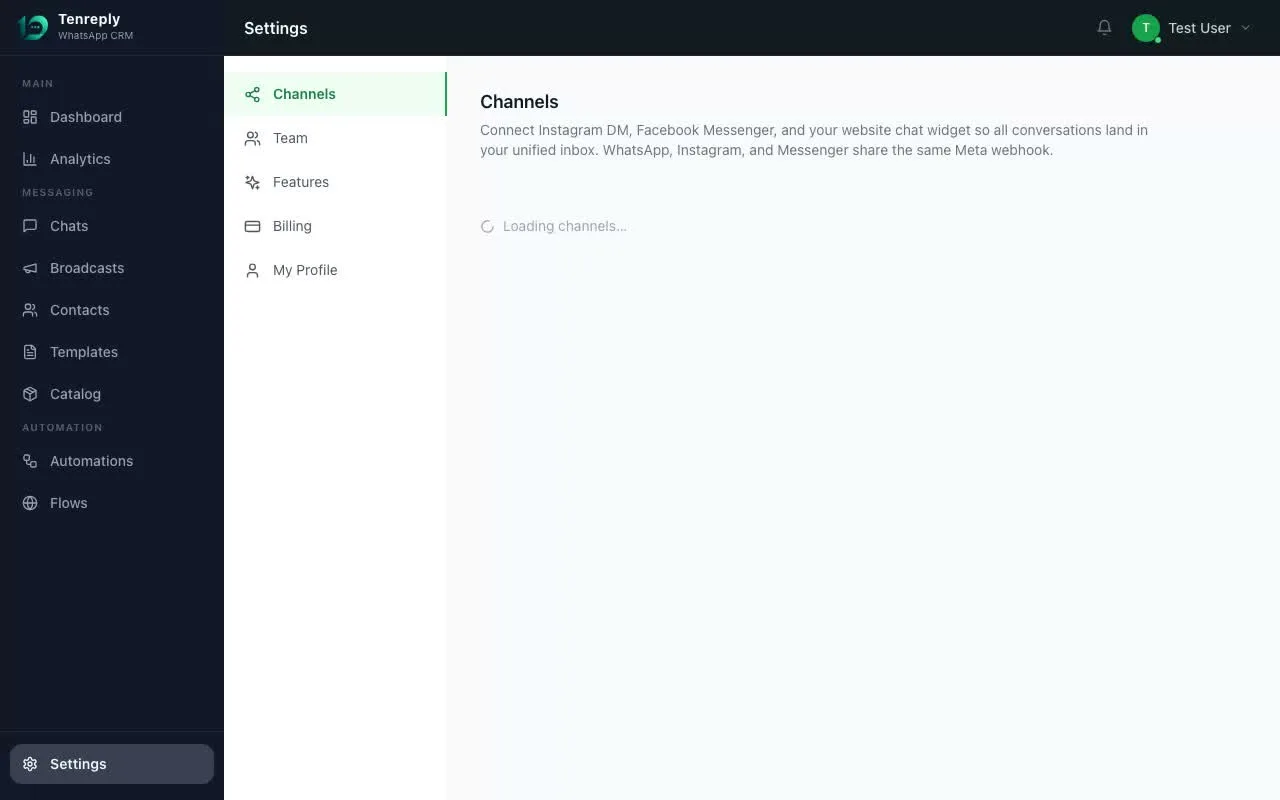
With your number connected and at least one template approved, you are live. Go to Settings → Team Members, add your agents by email, and assign them roles. From this point, any message sent to your WhatsApp number arrives in the Tenreply shared inbox — visible to your whole team, assignable, taggable, and fully tracked.
Send your first outbound message using the approved template, and your WhatsApp Business API is operational.
Common Questions
Can I use my existing business WhatsApp number?
Yes — but you will need to delete the WhatsApp app from the device using that number first, since a number can only be on one WhatsApp account at a time. Once migrated to the API, it can no longer be used with the standard app. Your message history from the app does not transfer, but all future conversations are stored in Tenreply.
What does it cost?
Meta's current message-pricing rules apply. A conversation window is 24 hours from the first message. Rates vary by country and conversation type (service vs. marketing). Tenreply shows a live breakdown of your Meta conversation costs inside the platform so there are no surprises.
How long until I can send messages at scale?
New accounts start at 1,000 business-initiated conversations per 24 hours. This limit scales automatically based on volume and quality — once you are sending consistently and your message quality rating stays high, Meta upgrades your tier. Most active businesses reach 10,000+ per day within a few weeks.
Your First 24 Hours on the API
Once you are live, the highest-value thing to do in your first day is set up one automated workflow: a welcome message that sends whenever a new contact messages you for the first time, and an away message that handles queries outside business hours. These two automations alone eliminate a significant chunk of manual work and improve first impressions immediately. Both take under ten minutes to configure in Tenreply's flow builder.